Use a MacBook as a second monitor for another Mac
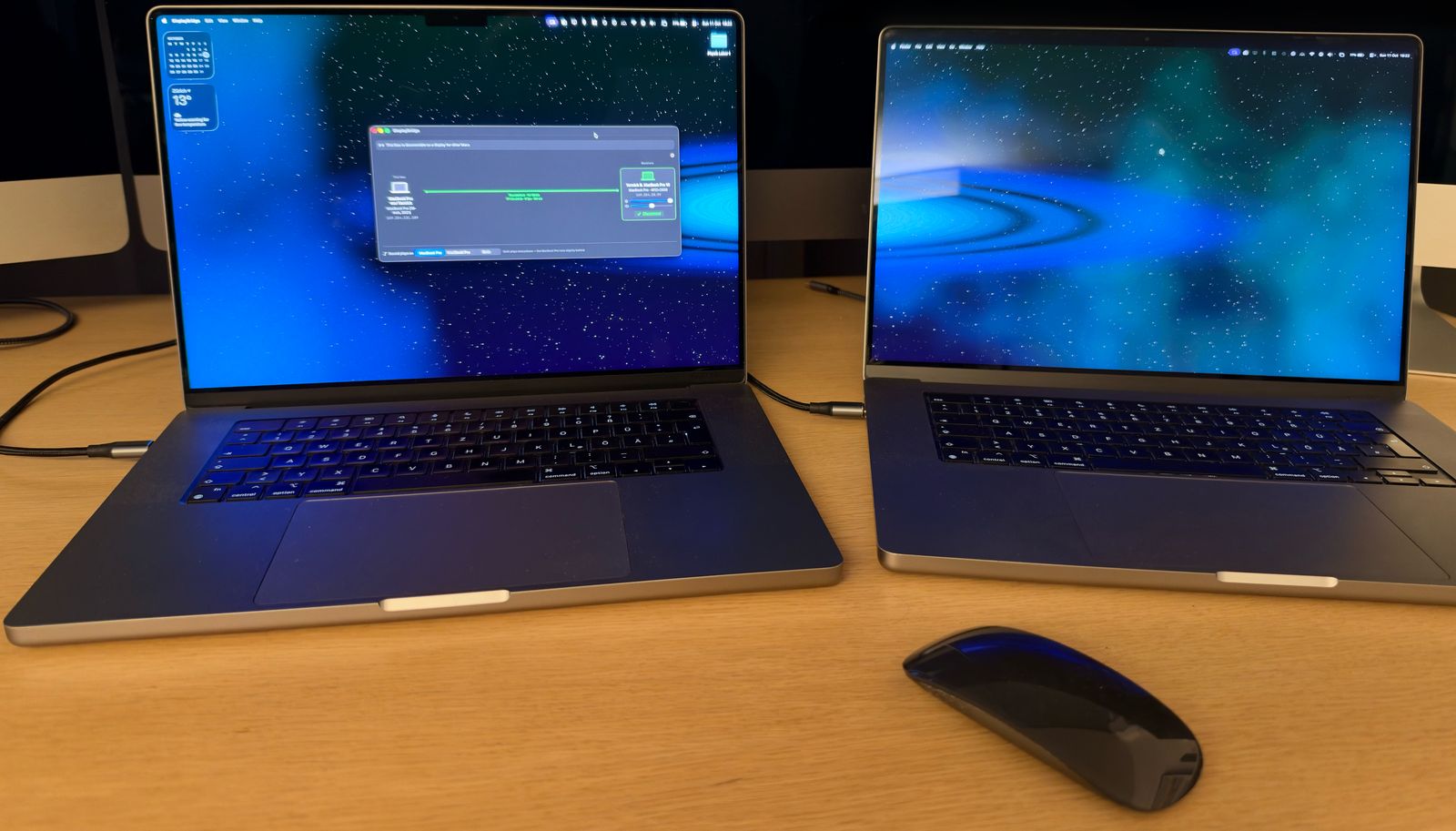
Yes, you can use a MacBook as a second monitor for another Mac, for example for a second MacBook, a Mac mini or a Mac Studio. MacBooks have no video input, and Apple's Sidecar only works with iPads, so you need an app: DisplayBridge, which I develop, turns a MacBook into a real second display over one Thunderbolt cable. I use it with my two 16-inch MacBook Pros.
In short: it works between any two Macs with Thunderbolt 3 on macOS 13 or later, and on a 14- or 16-inch MacBook Pro from 2021 on, the picture runs at 120 Hz. A MacBook can't be a monitor for a PC or a game console, though.
What works and what doesn't
Whether a MacBook can be your second monitor depends on what you want to connect to it:
| Main computer | MacBook as its second monitor? |
|---|---|
| Another MacBook, a Mac mini, a Mac Studio or an iMac | Yes, with DisplayBridge and one cable, if both Macs have Thunderbolt 3 or 4 and run macOS 13 Ventura or later. AirPlay to Mac also works, wirelessly and compressed |
| A Windows PC | Not with DisplayBridge. Luna Display and Duet Display can do it, with a compressed picture |
| A PS5, Xbox or Nintendo Switch | No. MacBooks have no video input |
| An iPad | No. Sidecar works the other way round: it uses an iPad as the display for a Mac |
Why Sidecar and Universal Control don't do this
Apple has three features that sound like they might turn a MacBook into a second screen, and only one of them actually does:
- Sidecar extends a Mac's desktop onto an iPad. It can't use a Mac as the display, not even on macOS 26.
- Universal Control lets one keyboard and trackpad move between two Macs, but each Mac keeps showing its own desktop. Nothing is extended.
- AirPlay to Mac does extend the desktop onto another Mac, including a MacBook Pro or Air from 2018 on. It is free and wireless, but the picture is compressed, so text isn't as sharp as on a real display and there is a noticeable delay.
This is easy to mix up: in Control Center under Screen Mirroring, iPads and Macs appear in the same list ("Mirror or Extend to:"). Choosing an iPad there uses Sidecar; choosing a Mac uses AirPlay to Mac, which is wireless and compressed, even though it looks the same.
MacBooks also never had Target Display Mode, the old iMac feature for using the screen with another computer.
Using a MacBook as a second monitor with DisplayBridge
DisplayBridge is one app that you install on both Macs. You connect them with a Thunderbolt cable and click Connect on the Mac you work on. A moment later, the MacBook appears in System Settings as a second display of that Mac, and you use it like any external monitor: move windows to it, put it to the left or right, or make it the main screen.
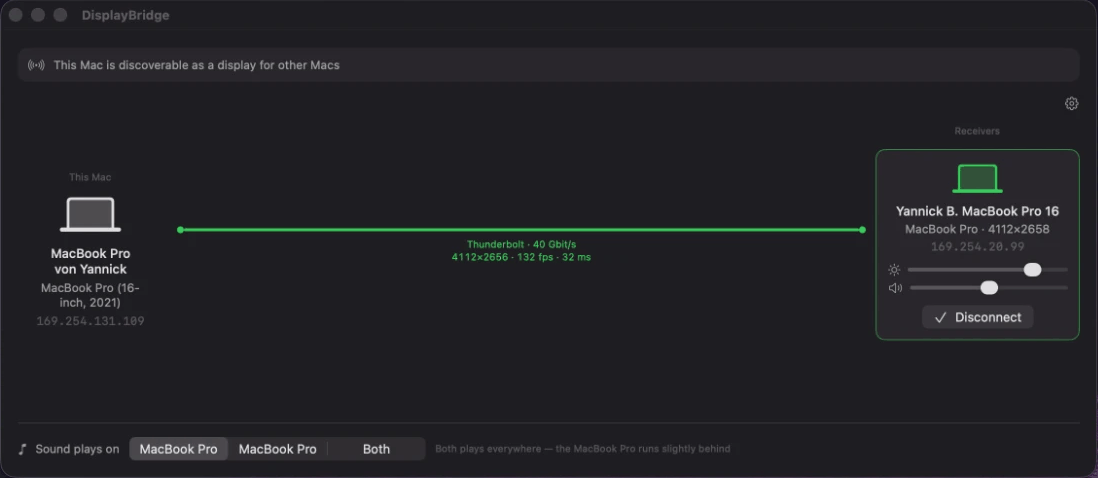
The picture travels over the cable uncompressed, at the MacBook's full Retina resolution, and the sound can play through the MacBook's speakers too. The app shows the delay live; in my setup with two MacBook Pros it is around 30 milliseconds from capturing a frame to showing it, which I don't notice in everyday use. I use this with my two 16-inch MacBook Pros with M1 Pro: one is the Mac I work on, the other becomes its second screen.
120 Hz on a MacBook Pro with ProMotion
If the MacBook you use as the display is a 14-inch or 16-inch MacBook Pro from 2021 or later, the picture runs at 120 Hz, the same smooth refresh rate its own ProMotion screen has. Scrolling, moving windows and the mouse pointer look as fluid as on the MacBook itself. Every other MacBook shows the picture at 60 Hz, like most external monitors.
What you need
- Two Macs on macOS 13 Ventura or later, both with Thunderbolt 3 or 4. The MacBook you use as the display can be any MacBook with Apple silicon, or an Intel MacBook Pro from 2017 or MacBook Air from 2018 on (those Intel models haven't been tested yet).
- One Thunderbolt cable or 40 Gbit/s USB-C cable (USB4). A normal USB-C charging cable looks the same but does not work. Look for the lightning symbol on the plug, or "40 Gb/s" on the packaging.
- A license only for the Mac you work on: $29, paid once, after a free 7-day trial. The MacBook that shows the picture never needs a license, so an old MacBook becomes a second screen at no extra cost.
How to set it up
The setup takes about five minutes and is exactly the same as with an iMac:
- Download DisplayBridge (the link starts the download right away) and install it on both Macs.
- Click Allow when macOS asks about local network access.
- On the Mac you work on, allow Screen Recording: the app has a button that opens the right page in System Settings. The MacBook used as the display doesn't need it.
- Connect the two Macs with the cable. After a few seconds, the other MacBook appears in DisplayBridge's list.
- Click Connect, then arrange the two screens in System Settings → Displays.
My step-by-step guide with screenshots shows every one of these steps in detail.
Good to know
- The display MacBook stays on and open. It has to be awake and logged in, with DisplayBridge running, because it runs the receiving side.
- Its own desktop keeps running underneath. Press Escape on the display MacBook, or click Disconnect on the other Mac, and you are back on it immediately.
- Its keyboard and trackpad don't control the other Mac. DisplayBridge sends the picture, not your input; you work with the keyboard and trackpad of the Mac you work on.
- For long sessions, plug the display MacBook into its charger, since showing a picture for hours uses its battery like any other work.
- Two MacBooks can be second displays at the same time, each with its own cable.
Conclusion
If both computers are Macs with Thunderbolt, a MacBook makes an excellent second monitor: one cable, an uncompressed picture at its full Retina resolution, sound, and 120 Hz on a recent MacBook Pro. For a Windows PC, Luna Display or Duet Display are the options; for a game console, a MacBook can't be the monitor.
The easiest way to try it with your own Macs is to download the free 7-day trial; the MacBook you use as the display never needs a license.
Questions about this
Can I use a MacBook as a monitor for a PS5, Xbox or Nintendo Switch?
No. MacBooks have no video input; their HDMI and USB-C ports only send a picture out. The only workaround is a USB capture card and a viewer app, which shows the console's picture in a window with a noticeable delay. DisplayBridge can't help here, because it only connects two Macs.
Can I use a MacBook as a second screen for a Windows PC?
Not with DisplayBridge, which only works between Macs. Luna Display and Duet Display both support a Windows PC as the main computer and a Mac as the display, with a compressed picture.
Does Sidecar work with a MacBook as the second display?
No. Sidecar only uses an iPad as a second display for a Mac, also on macOS 26. Other Macs do show up in the same list as iPads in Control Center under Screen Mirroring, but choosing a Mac there uses AirPlay to Mac, which is wireless and compressed. Over a cable and uncompressed, you need an app like DisplayBridge.
Does Universal Control turn a MacBook into a second display?
No. Universal Control lets you use one keyboard and trackpad across two Macs, but each Mac keeps showing its own desktop. It doesn't extend one Mac's desktop onto the other's screen; that is what DisplayBridge does.
Can an old MacBook be used as a second display?
With DisplayBridge, any MacBook with Thunderbolt 3 that runs macOS 13 Ventura or later can be the display, which includes Intel MacBook Pros from 2017 and MacBook Airs from 2018; those older Intel models haven't been tested yet. Older MacBooks that can't run macOS 13 can't receive AirPlay either, but Luna Display supports Macs from 2011 on as the display.
How smooth is a MacBook Pro with ProMotion as the second display?
It runs at 120 Hz, the same refresh rate as when you use that MacBook Pro on its own. That applies to the 14-inch and 16-inch MacBook Pros from 2021 on when they are the display. Other MacBooks show the picture at 60 Hz.